Is the Prentus Chrome extension free?
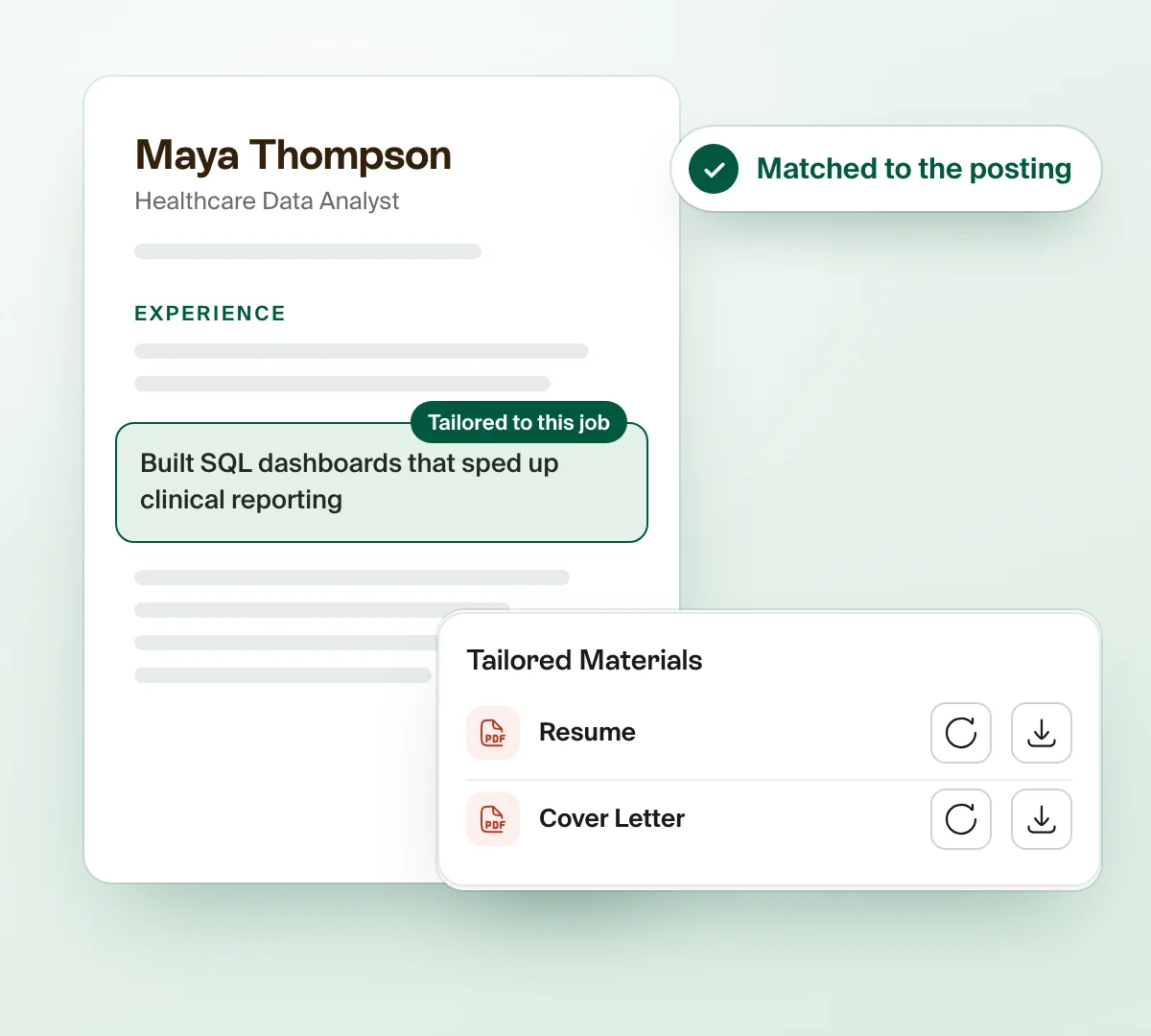
Yes. Saving jobs, autofill, Applied tracking, contacts, follow-ups and weekly goals are free. Each AI tool, like a tailored resume or cover letter, has 3 free uses. Pro adds unlimited AI tools, and some schools cover Pro for their students.
Does the Prentus extension work with Workday?
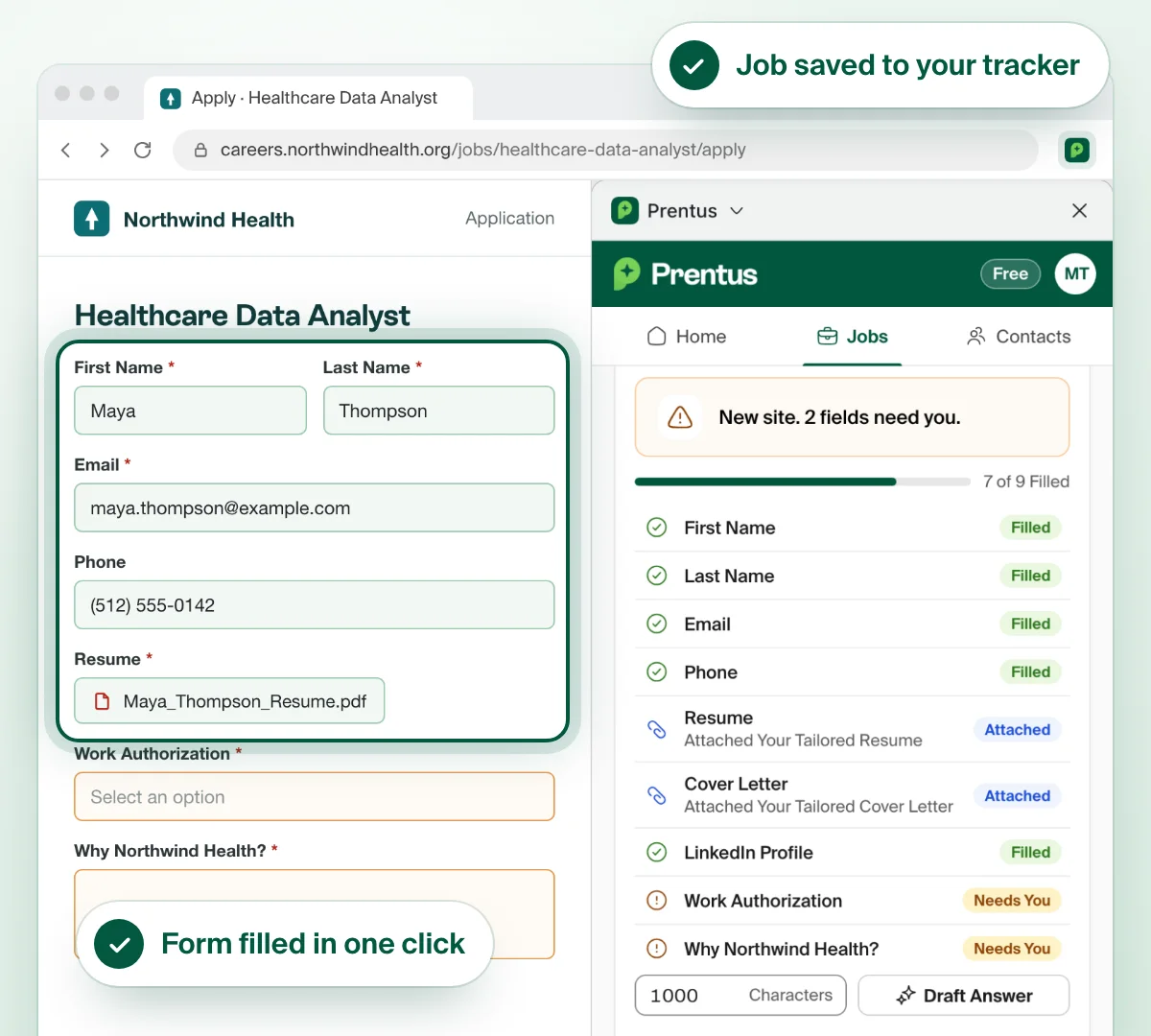
Yes. Autofill fills your details on Workday application forms, and on Greenhouse, Lever and Ashby. On other sites it fills the standard fields. You check every field and press Submit yourself.
Does the Prentus extension read my LinkedIn?
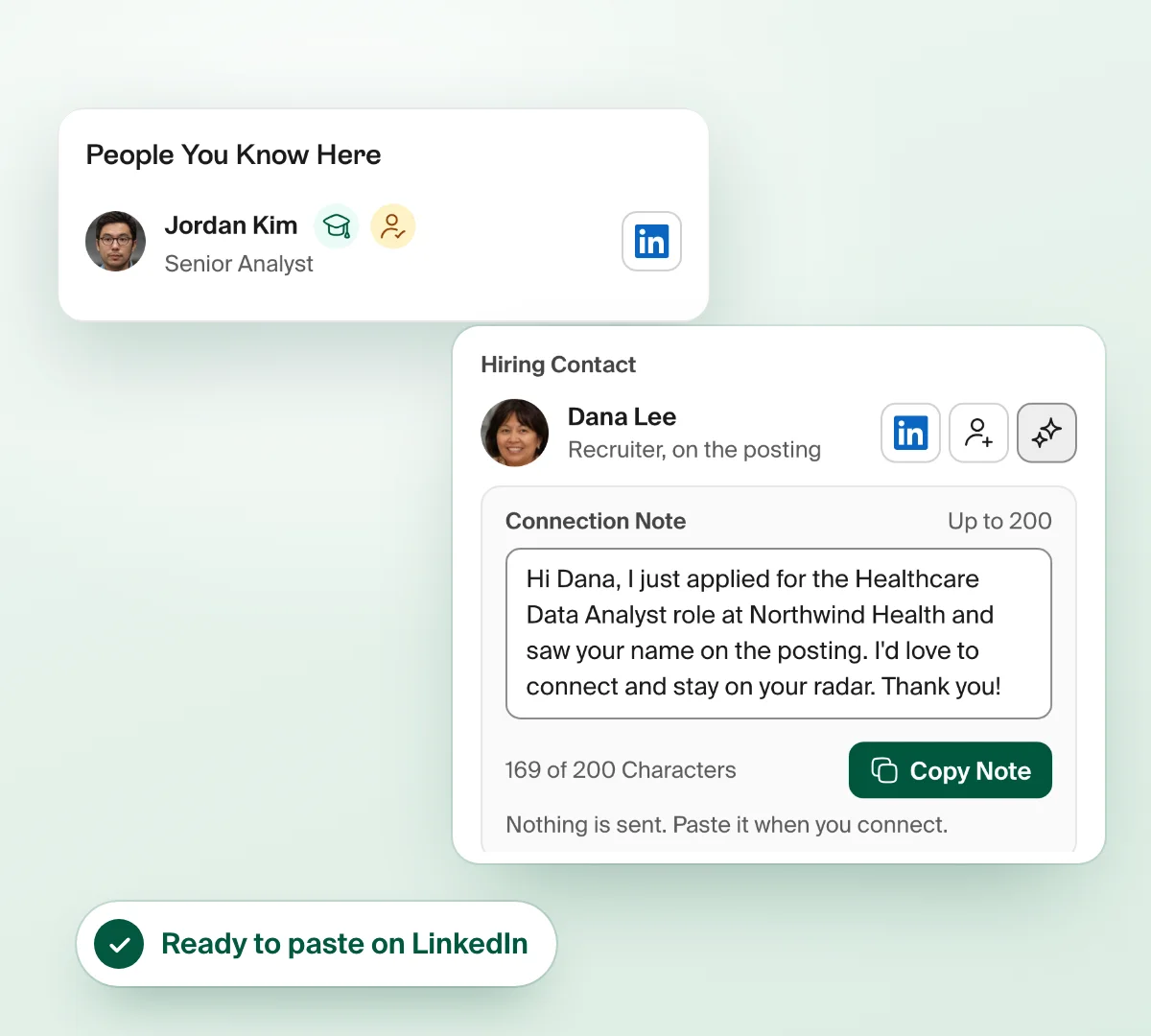
No. On LinkedIn, Prentus uses only the page address and the tab title. It never reads LinkedIn pages. You can still save LinkedIn jobs and contacts, and Next Steps opens a LinkedIn search for people to contact.
Does it submit job applications for me?
No. Autofill fills the fields and attaches your files. It never presses Submit, Next or Sign In, it never ticks consent boxes, and it leaves demographic, legal and salary questions for you.
Which job sites does the extension work on?
You can save jobs from any career site or job board, including LinkedIn. Autofill works on Greenhouse, Lever, Workday and Ashby, and fills the standard fields on other application forms. Autofill does not run on LinkedIn jobs.
Do I need a school account to use it?
No. Anyone can use it with a free Prentus account. If your school uses Prentus, sign in with your school account and the panel shows your school logo and colors.
What data does the Prentus extension collect?
The extension checks the pages you open, in your browser, to find job posts, application forms and confirmation pages. It sends no page data to Prentus until you press Agree, and then only the jobs you save or apply to. Prentus never sells your data or uses it to train AI.
Read the Chrome extension privacy policyHow do I install the Prentus Chrome extension?
Open the Prentus page in the Chrome Web Store and press Add to Chrome. Pin Prentus from the puzzle icon in your toolbar, click it to open the side panel, then sign in and press Agree and Continue. The extension works in Google Chrome on a computer.